
This blog post will delve into practical DIY PC maintenance tips that empower users to take charge of their devices while also fostering professional repair services as a backup option when needed.
In today’s digital age, personal computers (PCs) have become indispensable tools for work, education, plus entertainment.
However, like any machine, they require regular maintenance to function optimally plus last longer.
This comprehensive guide will cover essential aspects of DIY PC maintenance, including hardware cleaning, software management, plus routine checks that can significantly extend the lifespan of your device.
By following these tips, you can ensure your PC runs smoothly and efficiently while saving money on repairs and replacements.
>>>The Benefits of Professional Laptop Maintenance Services<<<
Comprehending the Importance of DIY PC Maintenance
Before diving into specific maintenance tasks, it is crucial to understand why regular upkeep is essential.
A well-maintained PC not only performs better, but also reduces the risk of unexpected failures.
Regular maintenance can help prevent issues such as overheating, slow performance, and data loss.
Benefits of Routine Maintenance
- Extended Lifespan: Just like a car requires oil changes and tire rotations, PCs need regular care to avoid wear and tear.
- Improved Performance: Routine checks can help identify bottlenecks in performance before they escalate into significant problems.
- Cost Savings: Preventative maintenance can save you money by reducing the need for costly repairs or replacements.
- Data Security: Regularly updating software and managing settings helps protect against malware and data breaches.
Hardware Maintenance Tips
1. Cleaning Your PC Components
Dust accumulation is one of the most common threats to a computer’s longevity.
Dust can clog fans and vents, leading to overheating, a primary cause of hardware failure.
How to Clean Your PC:
- Gather Supplies: You will need compressed air cans, microfiber cloths, isopropyl alcohol (preferably 70% or higher), cotton swabs, along with screwdrivers.
- Power Down: Always turn off your computer and unplug it from the power source before starting any cleaning process.
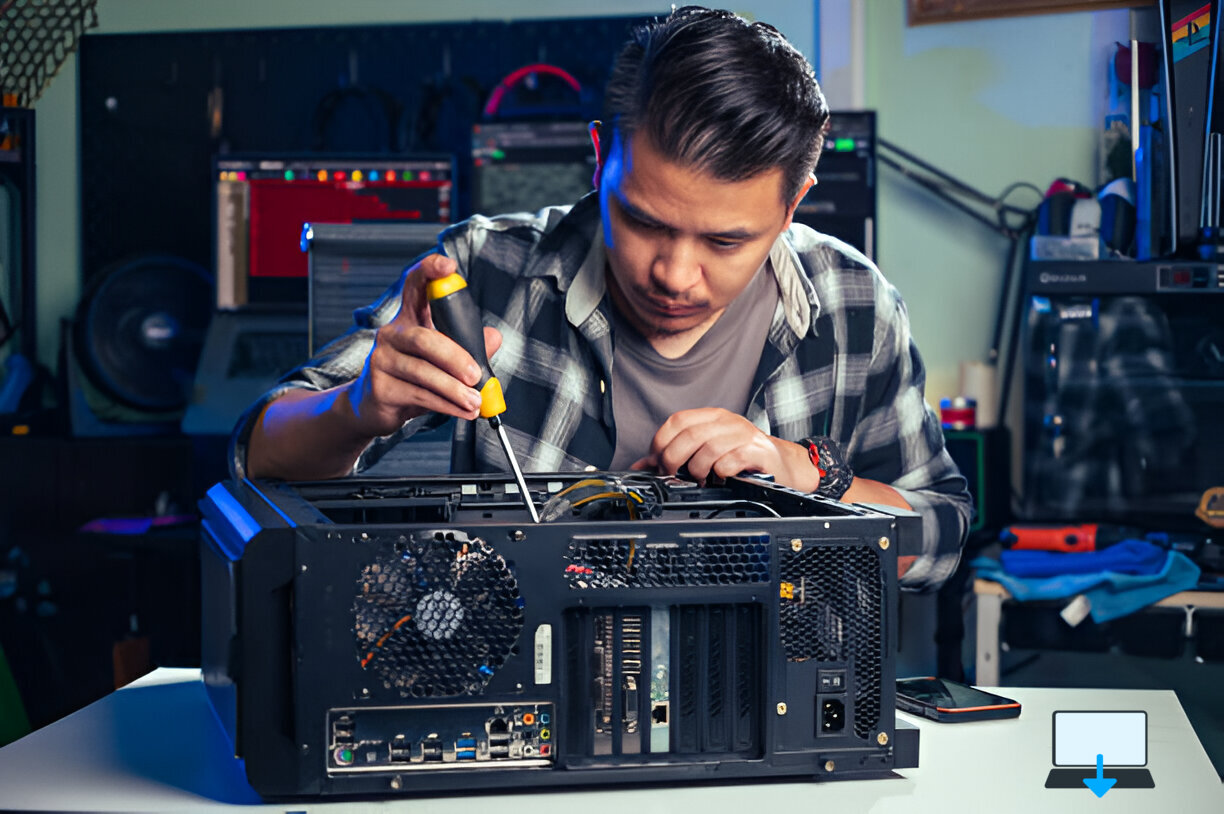
- Open the Case: Use a screwdriver to remove the side panel of your desktop case or access panel on laptops.
- Dust Removal:
- Use compressed air to blow out dust from fans, heat sinks, and other components.
- Wipe surfaces with a microfiber cloth lightly dampened with isopropyl alcohol.
- Reassemble: Once cleaned, reattach the side panel securely before powering up your device again.
2. Managing Cables
Cable management not only improves airflow within your case but also makes it easier to troubleshoot issues later on.
Tips for Cable Management:
- Use zip ties or Velcro straps to bundle cables together.
- Route cables behind the motherboard tray if possible for a cleaner look.
- Label cables if necessary for easier identification during troubleshooting.
3. Checking Hardware Connections
Loose connections can lead to intermittent issues that are often hard to diagnose.
Steps for Checking Connections:
- Ensure all power cables are securely connected.
- Check RAM modules by resenting them in their slots.
- Inspect hard drive connections, both power and data cables should be firmly attached.
Software Maintenance Tips
1. Keeping Software Up-to-Date
Outdated software can lead to security vulnerabilities as well as compatibility issues with newer applications.
How to Update Software:
- Enable automatic updates for your operating system (Windows Update or macOS Software Update).
- Regularly check for updates on installed applications through their respective settings menus.
Still having issues with software?
We wrote more on this previously here
2. Disk Cleanup
Over time, unnecessary files accumulate on your hard drive, which can slow down performance.
Performing Disk Cleanup:
For Windows:
- Open “Disk Cleanup” by searching in the Start menu.
- Select the drive you want to clean (usually C:) and click OK.
- Check boxes next to file types you wish to delete (temporary files, recycle bin contents).
- Click OK, then Delete Files when prompted.
For macOS:
- Go to “About This Mac” > “Storage” > “Manage.”
- Review recommendations under “Recommendations” section for optimizing storage space.
3. Antivirus Scans
Regular scans help protect against malware that could compromise system integrity or steal sensitive information.
Setting Up Antivirus Scans:
- Choose reputable antivirus software (e.g., Norton, Bitdefender).
- Schedule weekly full system scans while ensuring real-time protection is enabled.
Still don’t have a reputable antivirus? No problem, we wrote about 10 of the best free antivirus here
Monitoring System Performance
1. Task Manager/Activity Monitor Usage
Monitoring system resources allows you to identify programs consuming excessive CPU or memory resources, which may slow down performance.
How To Access:
For Windows:
- Press Ctrl + Shift + Esc or right-click on the taskbar and select “Task Manager.”
- Review CPU usage under “Processes” tab; end tasks that are unresponsive or using too much resource unnecessarily.
For macOS:
- Open “Activity Monitor” from Applications > Utilities.
- Sort processes by CPU usage; quit any non-essential applications consuming high resources.
2. Hard Drive Health Checks
Using built-in utilities or third-party software helps monitor hard drive health over time, crucial for preventing data loss due to failing drives.
Tools Available:
For Windows:
- Use “CHKDSK” command via Command Prompt (
chkdsk /f).
For macOS:
- Utilize “Disk Utility” found in Applications > Utilities; run First Aid on drives regularly.
Looking for more help with your hard drive issues? We previously wrote more on this here
Conclusion
DIY PC maintenance is an empowering practice that not only enhances your device’s performance but also extends its lifespan significantly, saving you both time and money in repairs down the line!
By implementing these straightforward tips, from cleaning hardware components regularly to managing software settings, you’ll ensure that your computer remains reliable throughout its life cycle.
However, remember that while many tasks are manageable at home with some basic tools and knowledge.
There may come a time when professional assistance becomes necessary, especially when dealing with complex hardware issues or intricate software problems beyond basic troubleshooting capabilities!
By maintaining an ongoing relationship with repair services as a backup option alongside performing routine DIY maintenance yourself, you’ll be well-equipped for whatever challenges arise in keeping your beloved PC running smoothly.
Eric Luis — CEO — Best Computer Repair
>>>The Benefits of Professional Laptop Maintenance Services<<<
If you enjoyed reading this post on “DIY PC Maintenance Tips to Extend Device Lifespan“ or if it helped you in any way, please feel free to show your support by giving us a share or a like.
It would mean a lot to us!… Still unsure about something?
Then consider giving us a chance to help you decide the best course of action for your situation, along with what would best meet your requirements.
We are highly flexible with a no fix no fee policy, one of the leading computer repair specialists, plus custom-built PC/server build, cybersecurity experts in Bridgend covering the whole of South Wales, U.K.
Book your FREE no-obligation quote today!
Our normal service area is Bridgend, however, we also cover Swansea, Port Talbot, Bryncethin, Sarn, Ogmore Vale, Maesteg, Llantwit Major, Cowbridge, Barry, Penarth, Dinas Powys, Cardiff, Newport.
Best Computer Repair Bridgend plus South Wales, U.K. also offer worldwide remote support, virus removal, or even custom-built gaming PCs.
We work with competitive rates, contactless payment, free delivery, along with a friendly, professional service that can’t be compared anywhere else in the IT Services industry.
Why not contact us today here or say hello in the live chat at the bottom right of the page.
Thank you for reading, plus have a wonderful week! 🙂
To our continued health plus success
Eric Luis – CEO Best Computer Repair –
Bridgend and South Wales, U.K.


POST REPLY