
If you use a Laptop, laptop batteries are an essential component of our daily lives. Whether we’re working, studying, or browsing the internet, we depend on our laptops to keep us connected and productive, which is why laptop battery performance is so important.
However, battery life can be a challenge, especially if you’re constantly on the go.
In this blog post, we’ll provide some tips and tricks to help you improve your laptop battery performance, so you can stay connected longer.
>>>Related post: Longevity Best Practices for Your Laptop Battery.<<<
Reduce Screen Brightness
One of the most effective ways to extend your laptop’s battery life is to reduce the screen brightness.
The brighter your screen, the more power your laptop consumes.
You can lower your screen brightness by pressing the function key (Fn) and the brightness down key simultaneously.
You can also adjust the screen brightness in the power settings menu.
Turn off Unnecessary Programs and Processes
Another way to extend your laptop’s battery life is to turn off unnecessary programs and processes.
Running multiple programs and processes can drain your battery quickly, especially if they are resource-intensive.
Close all unnecessary programs and processes to free up system resources and extend your battery life.
Disable Unused Devices: Laptops come with a range of devices and components that can consume battery power.
For example, Wi-Fi, Bluetooth, and other devices can be disabled when not in use.
Disabling these devices can significantly improve your laptop’s battery life.
Disconnect Peripherals and Accessories
Another way to save battery life is to disconnect peripherals and accessories when not in use.
External devices such as printers, scanners, and USB drives can drain your battery if left connected.
Disconnect these devices when not in use to save power.
Use Power Saving Mode
Most laptops come with a power-saving mode that can be enabled to conserve battery power.
This mode reduces the laptop’s performance and turns off unnecessary features to save power.
You can enable power-saving mode by going to the power settings menu.
Keep Your Laptop Cool
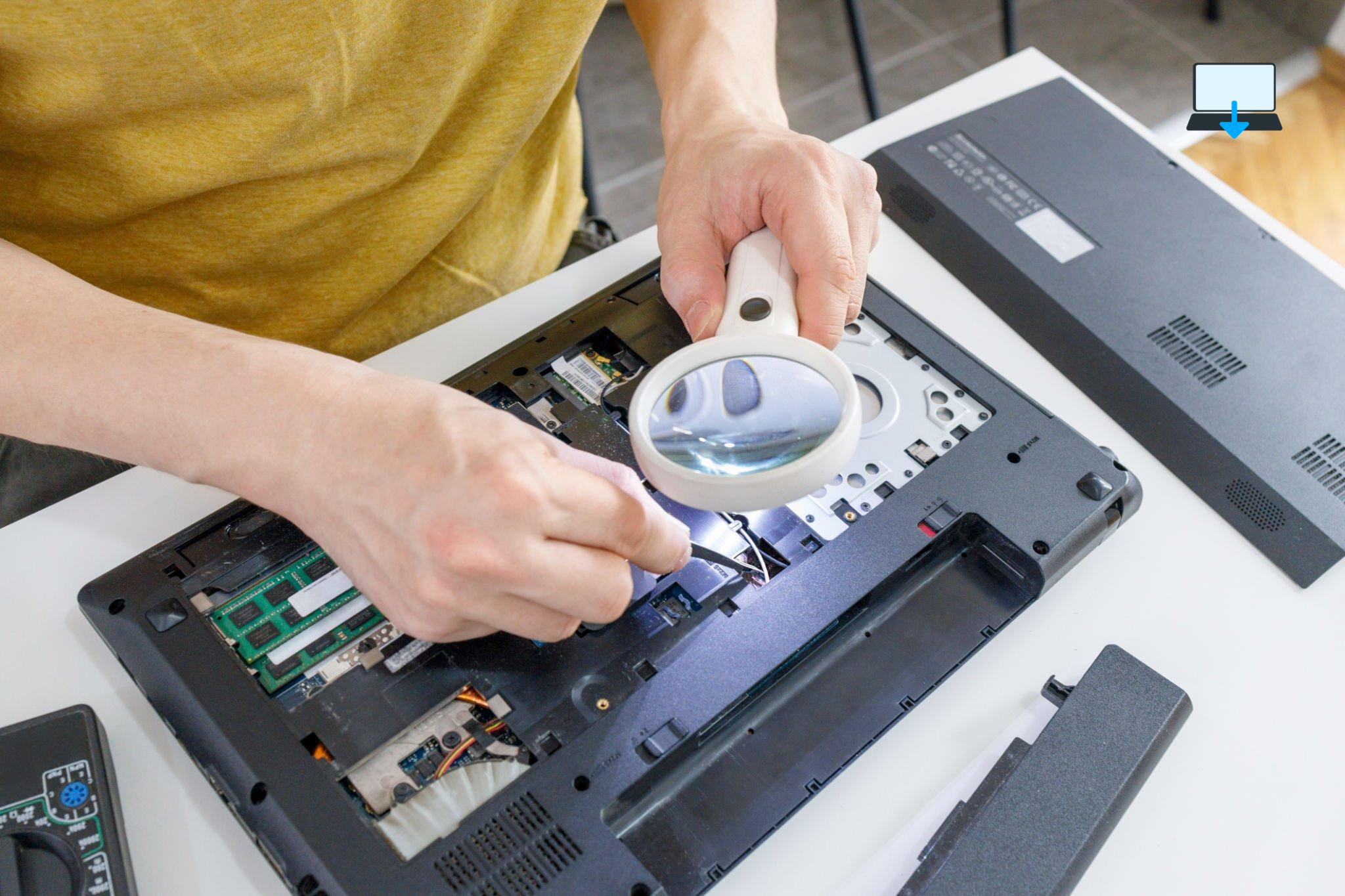
Overheating can damage your laptop’s battery and reduce its lifespan.
Keep your laptop cool by using a cooling pad or placing it on a hard surface that allows airflow.
You can also clean the air vents and fans regularly to prevent dust build-up.
Update Your Drivers
Updating your drivers can help improve your laptop’s battery life.
Outdated drivers can cause system instability, which can lead to higher power consumption.
Make sure you update your drivers regularly to ensure optimal performance.
Use a Battery Monitoring Tool
A battery monitoring tool can help you track your laptop’s battery performance and identify issues that may be draining your battery.
There are many free and paid battery monitoring tools available online that can help you optimize your laptop’s battery life.
Replace Your Battery: If all else fails, you may need to replace your laptop’s battery.
Most laptop batteries have a lifespan of 2–3 years, after which they start to degrade and lose their capacity.
If you’re experiencing poor battery life despite trying all the above steps, it may be time to replace your battery.
Conclusion
Improving your laptop’s battery performance is essential if you want to maximize your productivity and stay connected on-the-go.
By following the tips and tricks outlined in this post, you can significantly improve your laptop’s battery life and avoid the frustration of running out of power when you need it most.
Remember to adjust your screen brightness, turn off unnecessary programs and processes, disable unused devices, disconnect peripherals and accessories, use power-saving mode, keep your laptop cool, update your drivers, use a battery monitoring tool, and replace your battery if necessary.
By taking these steps, you can ensure that your laptop battery lasts as long as possible and stays in good condition.
So, the next time you’re working on your laptop, be sure to implement these strategies to improve your laptop battery performance and stay connected for longer.
>>>Related post: Longevity Best Practices for Your Laptop Battery.<<<
If you enjoyed reading this post on “Guide: How to Improve Laptop Battery Performance.“ or if it helped you in any way, please feel free to show your support by giving us a share or a like.
It would mean a lot to us!… Still unsure about something?
Then consider giving us a chance to help you decide the best course of action for your situation, along with what would best meet your requirements.
We are highly flexible with a no fix no fee policy, one of the leading computer repair specialists, plus custom-built PC/server build, cybersecurity experts in Bridgend covering the whole of South Wales, U.K.
Book your FREE no-obligation quote today!
Our normal service area is Bridgend, however, we also cover Swansea, Port Talbot, Bryncethin, Sarn, Ogmore Vale, Maesteg, Llantwit Major, Cowbridge, Barry, Penarth, Dinas Powys, Cardiff, Newport.
Best Computer Repair Bridgend plus South Wales, U.K. also offer worldwide remote support, virus removal, or even custom-built gaming PCs.
We work with competitive rates, contactless payment, free delivery, along with a friendly, professional service that can’t be compared anywhere else in the IT Services industry.
Why not contact us today here or say hello in the live chat at the bottom right of the page.
Thank you for reading, plus have a wonderful week! 🙂
To our continued health plus success
Eric Luis – CEO Best Computer Repair –
Bridgend and South Wales, U.K.


POST REPLY