
This guide provides ten best essential DIY computer repair tips for beginners, empowering you to tackle minor problems before seeking professional help.
In today’s digital age, computers have become an integral part of our daily lives.
Whether for work, education, or leisure, understanding how to troubleshoot common computer issues can save time and money.
This blog post outlines the top ten DIY computer repair tips tailored for beginners.
Each tip is designed to address common issues that users may encounter, providing clear instructions and examples to facilitate understanding.
By following these guidelines, individuals can enhance their troubleshooting skills and gain confidence in managing their devices.
>>>Related post: DIY PC Maintenance Tips to Extend Device Lifespan<<<
1. Understanding Your Computer’s Anatomy
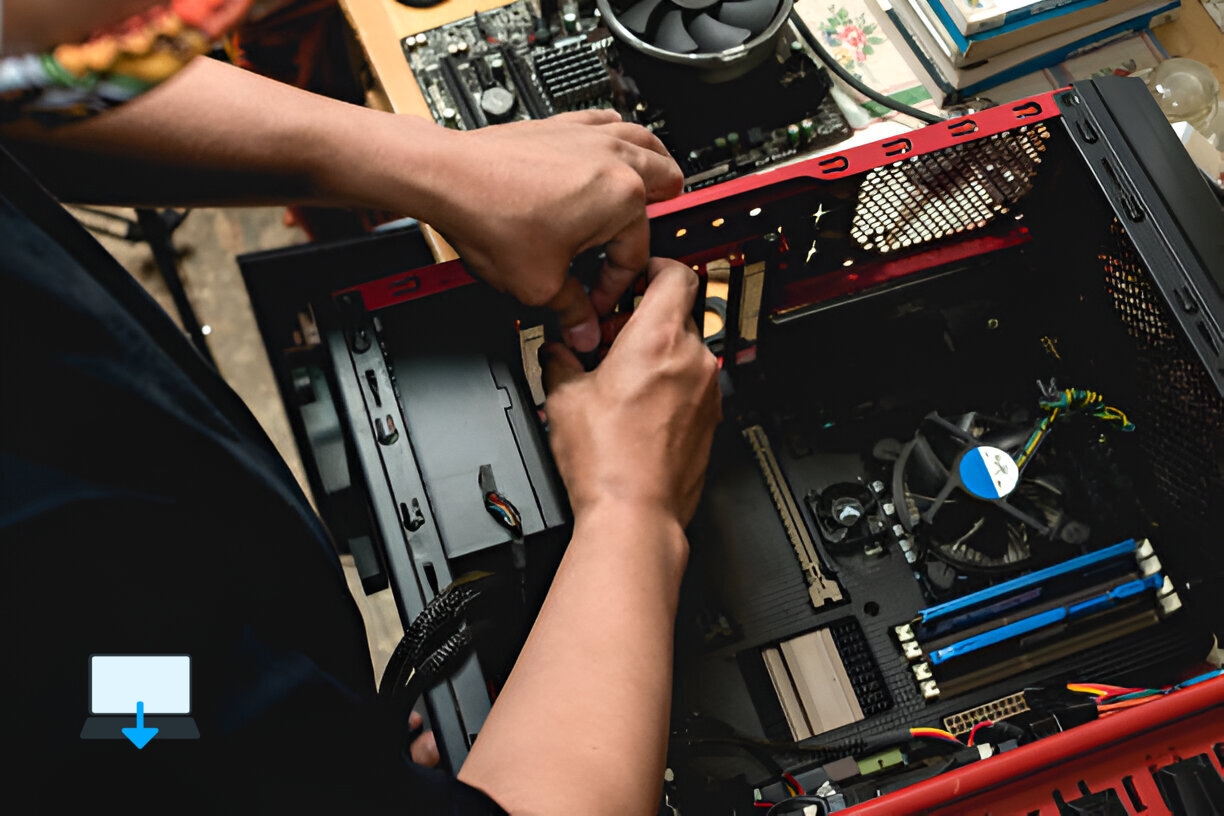
Before diving into repairs, it’s crucial to familiarize yourself with your computer’s components.
Knowing the basic parts, such as the motherboard, CPU (Central Processing Unit), RAM (Random Access Memory), hard drive, and power supply, will help you identify issues more effectively.
Example:
- Motherboard: The main circuit board that connects all components.
- CPU: Often referred to as the brain of the computer; it processes instructions.
- RAM: Temporary storage that allows your computer to run applications smoothly.
By understanding these components, you’ll be better equipped to diagnose problems when they arise.
2. Regular Maintenance is Key
Preventative maintenance can significantly reduce the likelihood of encountering major issues. Regularly cleaning your computer and updating software are two fundamental practices.
Cleaning Your Computer:
- Dust accumulation can lead to overheating. Use compressed air to clean vents and fans.
- Wipe down surfaces with a microfiber cloth to remove fingerprints and grime.
Software Updates:
- Keep your operating system and applications updated to protect against vulnerabilities.
- Enable automatic updates where possible for convenience.
3. Troubleshooting Startup Issues
If your computer fails to start or gets stuck on a boot screen, there are several steps you can take:
Steps:
- Check Power Supply: Ensure that the power cable is securely connected.
- Remove External Devices: Disconnect peripherals (USB drives, printers) that may interfere with startup.
- Boot in Safe Mode: Restart your computer and press F8 (or Shift + F8) before Windows loads; select “Safe Mode” from the menu.
These steps can often resolve startup issues without needing professional assistance.
4. Diagnosing Slow Performance
A sluggish computer can be frustrating but diagnosing the cause is often straightforward:
Common Causes:
- Too many background applications consuming resources.
- Insufficient RAM for running multiple programs simultaneously.
Solutions:
- Task Manager: Press Ctrl + Shift + Esc to open Task Manager; close unnecessary applications.
- Upgrade RAM: If slow performance persists during multitasking, consider upgrading your RAM for improved efficiency.
5. Fixing Software Crashes
Software crashes can occur due to various reasons such as bugs or compatibility issues:
Steps to Resolve:
- Update Software: Ensure all programs are up-to-date.
- Reinstall Problematic Applications: Uninstall and reinstall any software that frequently crashes.
By keeping software updated and reinstalling problematic applications, you can minimize disruptions in your workflow.
6. Addressing Internet Connectivity Issues
Internet connectivity problems are common but often easy to fix:
Troubleshooting Steps:
- Restart Your Router/Modem: Unplugging them for a few seconds can resolve many connectivity issues.
- Check Network Settings: Ensure Wi-Fi is enabled on your device and that you’re connected to the correct network.
- Run Network Troubleshooter: On Windows, go to Settings > Network & Internet > Status > Network troubleshooter for automated fixes.
These steps will help restore internet access quickly without needing external support.
7. Managing Storage Space
Running out of storage space can hinder performance significantly:
Solutions:
- Disk Clean-up Tool: Use built-in tools like Disk Clean-up on Windows or Optimize Storage on macOS to free up space by removing temporary files.
- Uninstall Unused Programs: Regularly review installed programs and uninstall those no longer required.
Maintaining adequate storage space ensures smooth operation of your system.
8. Dealing with Malware Infections
Malware infections pose serious risks but can often be resolved through proactive measures:
Prevention Tips:
- Install Antivirus Software: Use reputable antivirus programs like Norton or McAfee for real-time protection against malware threats.
- Regular Scans: Schedule regular scans of your system for potential threats.
If you suspect an infection:
- Run a full system scan using your antivirus software.
- Consider using additional tools like Malwarebytes for thorough cleaning if necessary.
9. Backing Up Important Data
Data loss can occur due to hardware failure or accidental deletion; hence backing up data is essential:
Backup Methods:
- External Hard Drives: Regularly copy important files onto an external drive.
- Cloud Storage Services: Utilize services like Google Drive or Dropbox for automatic backups of critical documents.
Implementing a backup strategy safeguards against unexpected data loss scenarios.
10. Knowing When To Seek Professional Help
While many issues can be resolved independently, some situations require professional intervention:
Signs You Need Help:
- Persistent hardware failures despite troubleshooting efforts (e.g., repeated blue screens).
- Complex repairs involving internal components (e.g., replacing a motherboard).
Recognizing when professional assistance is necessary ensures safety and proper handling of intricate repairs.
Conclusion
Understanding how to troubleshoot common computer issues empowers users with confidence in managing their devices effectively.
Without always relying on professional’s first-hand assistance might not only save money but also enhance one’s technical skills over time by following these ten DIY computer repair tips tailored specifically for beginners!
By familiarizing yourself with DIY Computer Repair Tips for Beginners above. It will empower you to comprehend basic anatomy, perform regular maintenance, troubleshoot startup problems, address slow performance, fixing software crashes, managing connectivity issues, optimizing storage space, dealing with malware infections proactively backing up data regularly etc. Thus leading to not need a repair in the future.
Eric Luis – CEO – Best Computer Repair
Knowing when it’s time to seek expert advice, you’ll find yourself well-equipped to navigate through most challenges encountered along the way!
>>>Related post: DIY PC Maintenance Tips to Extend Device Lifespan<<<
If you enjoyed reading this post on “Top 10 DIY Computer Repair Tips for Beginners: A Comprehensive Guide“ or if it helped you in any way, please feel free to show your support by giving us a share or a like.
It would mean a lot to us!… Still unsure about something?
Then consider giving us a chance to help you decide the best course of action for your situation, along with what would best meet your requirements.
We are highly flexible with a no fix no fee policy, one of the leading computer repair specialists, plus custom-built PC/server build, cybersecurity experts in Bridgend covering the whole of South Wales, U.K.
Book your FREE no-obligation quote today!
Our normal service area is Bridgend, however, we also cover Swansea, Port Talbot, Bryncethin, Sarn, Ogmore Vale, Maesteg, Llantwit Major, Cowbridge, Barry, Penarth, Dinas Powys, Cardiff, Newport.
Best Computer Repair Bridgend plus South Wales, U.K. also offer worldwide remote support, virus removal, or even custom-built gaming PCs.
We work with competitive rates, contactless payment, free delivery, along with a friendly, professional service that can’t be compared anywhere else in the IT Services industry.
Why not contact us today here or say hello in the live chat at the bottom right of the page.
Thank you for reading, plus have a wonderful week! 🙂
To our continued health plus success
Eric Luis – CEO Best Computer Repair –
Bridgend and South Wales, U.K.


POST REPLY